An iPhone remote for your LG TV.
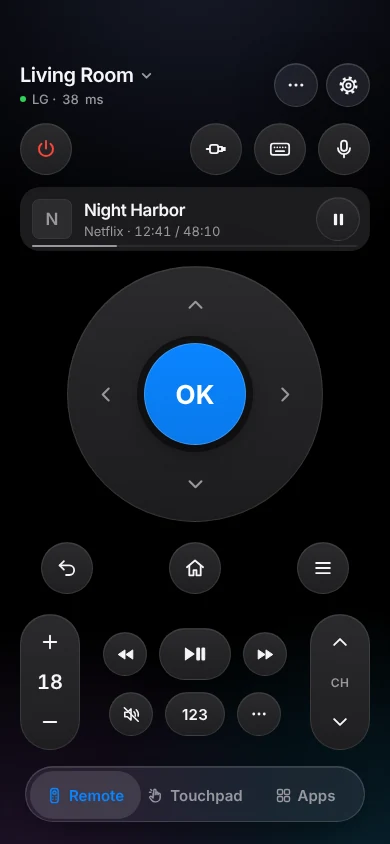
TVkip controls LG webOS TVs from 2014 to today over your Wi-Fi: every button, typing, volume, apps, inputs and turning the TV off. You accept it once on the TV, and turning the TV on from your iPhone needs one setting.
TVkip is an independent app. It isn't made by, affiliated with or endorsed by LG Electronics; the LG name only describes which TVs it works with.
What works on each LG TV
LG has used webOS on its smart TVs since 2014. The year matters less than you might think: every generation gets the full remote.
| 2014–2015 (webOS 1–2) | 2016–2022 (webOS 3–22) | 2023 and later (webOS 23+) | |
|---|---|---|---|
| Found automatically | Yes | Yes | Yes |
| Pairing | Accept once | Accept once | Accept once or PIN |
| Every button | Yes | Yes | Yes |
| Typing | Most apps | Most apps | Most apps |
| Volume level | Yes | Yes | Yes |
| Apps list and launch | Yes | Yes | Yes |
| HDMI inputs | Yes | Yes | Yes |
| Turn off / on | Off; on needs a setting | Off; on needs a setting | Off; on needs a setting |
| Now playing | App name | App name | App name |
The one setting you may need
Turning the TV off works out of the box. To turn it on from your iPhone, the TV has to keep listening while it sleeps:
- Newer models: Settings > General > Devices > External Devices > TV On With Mobile (on some models Mobile TV On) > Turn on via Wi-Fi → On. Leave it on even if the TV uses a network cable.
- Models with Quick Start+: also turn on Quick Start+ in General > Devices > TV Management or Always Ready, if your model has it. From 2021, Quick Start+ is on by default.
- Older models: if no connection request appears at all, turn on LG Connect Apps under Network.
If your TV switches between Wi-Fi and a cable, open TVkip once while the TV is on, so it learns both addresses.
Set it up
- Put your iPhone on the same Wi-Fi as the TV, and turn the TV on.
- Open TVkip and allow Local Network access when iOS asks. Your LG TV appears in the list.
- Pick it. The TV shows a connection request: press Accept with your LG remote within about 30 seconds. Some models show a PIN instead; type it in the app.
- That's it. Next time, TVkip connects by itself.
Pressed Decline by mistake? Remove the TV in the app (tap its name, swipe left, Remove), wait a minute and add it again. The full guide is Connecting an LG TV.
Honest limits
- Netflix and YouTube ignore phone keyboards on many LG TVs. LG's own app has the same limit. Tap Use the TV's Keyboard and TVkip types through the on-screen keyboard for you; it's slower, so a few letters are usually enough (how it works).
- Turning on needs the setting above. Without it, a sleeping LG TV doesn't answer anyone.
- Soundbars: with a soundbar on HDMI ARC or optical, the TV may not report a level. The volume keys still work.
- Now playing shows the app in front, not the title of what's playing.
- The channel list stays empty on TVs without a tuner or a channel scan; the channel keys still work.
What's free, and what Pro adds
Free, for up to two TVs: the whole remote (buttons, touchpad, keyboard, app launcher, inputs), Easy Mode, your iPhone's volume buttons, Control Center and Action button controls, the Lock Screen volume widget, the Live Activity, the Apple Watch remote for the TV you're using, basic Siri and 10 casts a day.
Pro adds a third TV and more, the motion remote (point your iPhone like a Magic Remote), screen mirroring, unlimited casting, the full Watch app, more widgets, scenes and Kids Mode. Pro Yearly is US$14.99 a year with a 14-day free trial; Pro Lifetime is US$29.99 once.
Questions
Does it work with my LG TV from 2016?
Yes. Every LG webOS TV from 2014 on gets the full remote, including typing, volume, apps and inputs.
Do I need the LG ThinQ app or an account?
No. TVkip talks to the TV directly over your Wi-Fi. There's no account to create, in TVkip or anywhere else.
Why can't I type in Netflix on my LG TV?
The Netflix and YouTube apps on many LG TVs ignore text sent from phones. Tap Use the TV's Keyboard and TVkip selects each letter on the TV's own keyboard.
Can it replace a lost Magic Remote?
For everyday use, yes: buttons, a touchpad for the pointer, typing and power. Turn the TV on with its own power button, open Settings from the app and switch on Turn on via Wi-Fi (above); after that the app turns it on too.